This week a tip for Firefox power users. In addition to the Preferences accessible via the menubar, Firefox retains a comprehensive set of hidden settings that go back to it’s roots in the Netscape era.
Of course you are presented with an initial Caveat Emptor about the stability of your system and all that, but you’ve already jailbroken your iPhone and iPad (right?) so go ahead and dive right in…
Even though the iPad will go on sale in Canada at the end of the month (May 28), our friends north of the border are buying them by the boatload on the grey market.
It’s not hard to smuggle an iPad across the border, but Canadians have to jump through a couple of hoops to download apps from the U.S. App Store.
One thing a lot of Windows users miss is the Start Menu. How do you find your way around a Mac without a Start Menu to help?
If you stop to think about it, the Start button is a visual aide-memoire; you click on it to start the process of figuring out where to go next. If you’re looking for a particular file, you can navigate to it using the default locations listed in it. And if you want to open a particular piece of software, the likelihood is that you’ll find it there too. The Start button is there for you to click on when you don’t know where else to begin. No matter what you want, you can find it (eventually) from the Start button.
Unfortunately for switchers, Mac OS X doesn’t really have a single button that completely replaces Start. But I can suggest a couple of alternatives.
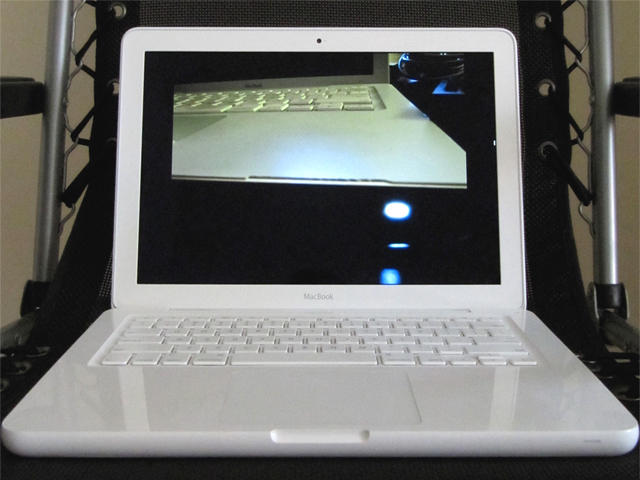
The previous lines of plastic MacBooks are notorious for developing a wide variety of defects. One defect in particular, cracking plastic, has caused many to aptly refer to these MacBooks as “CrackBooks.”
This article will tell you how to turn that outdated CrackBook into a brand new MacBook. It worked for us. I hope it works for you.
As an IT consultant you get accustomed to certain problems and complaints from users. “My computer is running slow” is a universal favorite. “You said this would only take a few minutes” is another perennial frontrunner.
But one stands out as arguably the most common end user headache: “My Email Isn’t Working.”
Sigh… Welcome to the club. Email headaches are endless. Fortunately, many issues are common problems that can be fixed relatively easily.
Spirit by comex allows you to jailbreak your device, to get complete control over it (see why you should jailbreak here). Currently, spirit allows you to jailbreak any device that has already been upgraded to firmware 3.1.2, 3.1.3 or even an iPad on version 3.2. However, it will NOT unlock the device, enabling it to be used with different GSM carriers worldwide.
The first thing you’ll want to do on your brand new iPad 3G is sign up for a data plan. It’s pretty easy, and you can do it right on the iPad. It’s basically half-a-dozen finger taps (except for typing in your credit card number of course).
These days many people do some or most of their music listening on the computer, and much of that is managed with iTunes. It’s very nice to have such quick and easy access to your music library, podcasts and internet radio in one place, but by default these only play in the room where the computer is located.
Wouldn’t it be nice to listen throughout your whole house or office, and without breaking the bank?
In the last tip, we showed you three standard views for looking at files in a Finder window.
There’s a fourth view, though. It’s called Cover Flow, and we’ve given it a tip all of its own because you’re likely to see it in many different places.
Apple’s own iPad dock gives an easy and handy way to use a physical keyboard with your tablet, but one annoyance is the official dock’s inability to allow you to type when the device is in a landscape position.
It’s slightly irritating, but the Book of Joe has an easy-to-follow instruction manual on how to dock your iPad in a landscape position.
Essentially, you prop up your iPad (in Joe’s case, with the official iPad case) and use an iPod cable extender to connect the iPad to the dock connector. It’s a lot more of a kludge than it has to be, and I imagine a bluetooth keyboard and a sixty-nine cent business card holder would be a better solution for the price. Still, if you’ve got this stuff lying around already, it’s not a bad hack… at least until a third-party accessory maker comes out with a dock that allows typing in both landscape and vertical orientations.
We’ve shown you a first generation iPhone dual-booting into Android OS, but want to do it yourself? You’re in luck! Here’s an easy to follow seventy step guide, simple enough for that even a drunk, googly-eyed neonate could figure it out.
We’re slightly kidding: a lot of this instruction list is devoted to things like setting up virtualized Ubuntu installs, so it’s really only fifty steps. Still, that’s an order of magnitude too many steps for a guy whose technical sophistication tops out at dragging the install icon to his Applications folder.
Are you Cylon enough to attempt it though? God speed, and let us know how you get along in the comments.
When you’re browsing a bunch of files in a Finder window, you can choose whether to view them as icons, as a list, or in columns. This tip shows you how to quickly switch from one view to another.
If only we could have experienced the iPhone in all of its glory from the initial release. 3G has only recently been opened to multimedia streaming. Tethering is still not available though the iPhone is fully capable. Why are we not video chatting with our loved ones these almost perfect devices?
Jailbreaking that iPhone is currently the only way to tether your device to you Mac and get that sweet 3G data access to you 13″ Macbook. In fact, with MyWi, a jailbreak app from the Cydia Store, you can create your own WiFi hotspot similar to the Verizon MiWi. Better charge up that battery now.
Spotlight is the built-in search system in Mac OS X. You can get to it at any time by clicking on the magnifying glass icon in the very top-right corner of your screen.
Welcome to MacRx, a new category dedicated to some common setups, problems and headaches of All Things Mac. As we all know, how things should work isn’t always how they do work. Sometimes a little assistance can be in order.
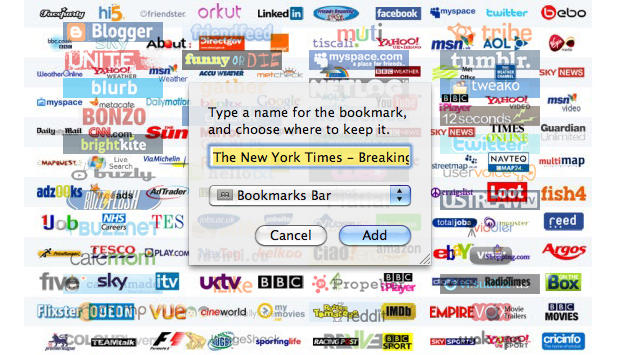
This week an issue I’ve seen many users struggling with, Managing Bookmarks in Safari. As a Mac consultant I frequently run into clients who can’t find the bookmarks they’ve added to their systems, or have so many bookmarks saved that the list is virtually endless and unuseable.
Getting to know the ways in which Safari stores bookmarks, and coming up with a simple organizing scheme you can follow, will go a long way in preserving your sanity – or at least help save some time occasionally.
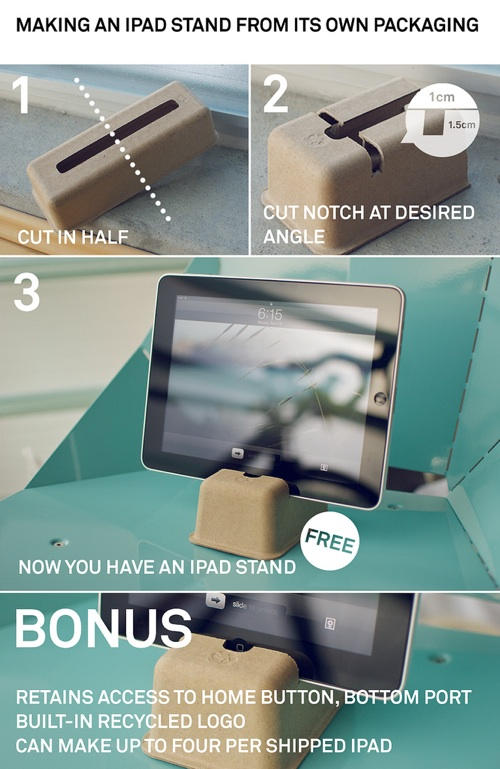
$0.69 for an iPad stand? Bah, we say. Ian Collins shows us all how to make up to four free iPad stands out of its own packaging materials. Ghetto? Perhaps. We prefer to call it recycling.
Some of our previous tips have guided you around the Dock, but you might not always want to use that.
Sometimes, you just want to quickly flit between applications, and constantly taking your hands off the keyboard to use the mouse or trackpad can be annoying.
This tip shows you a quick way to switch from one app to another, without taking your hands off the keyboard at all.
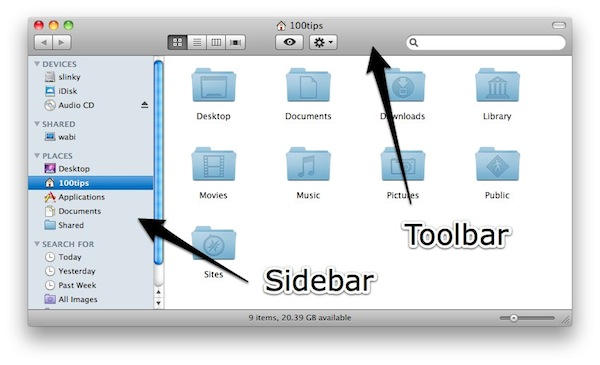
We’ve looked at the Dock, and we’ve looked at the Menu Bar. Today we’re taking our first look at Finder.
This is what you’ll see when you first start to use Finder in Mac OS X. Broadly speaking, it does the same job as Windows Explorer, but it does many of those things in different ways.
Before we go into any more detail (which we will, in forthcoming tips), it helps to understand the layout of a Finder window.
Last week, I wrote about an upcoming bullet hell SHMUP from Cave called ESPGALUDA II due to hit the App Store last Saturday. As promised, it did, and at a special low introductory price of $4.99 to boot.
Unfortunately, though, ESPGALUDA II came with some big problems.
For one, it would only run on the iPhone 3Gs or iPad. Even worse? Due to a developer error, third generation iPod Touches like mine were inexplicably incapable of running the game, even though the hardware supports it. This put iPod Touch owners in a nasty position: they either dropped five bucks on the ESPGALUDA II app now and hoped an update came along soon to fix the install problem, or waited for the fix and risk paying an extra four bucks for the game later.
If you’re a SHMUP-loving iPod Touch 3rd Gen owner, though, don’t despair. There’s an easy way to get ESPGALUDA II running on your device right now. Just follow the instructions below.
Exposé is a system built into Mac OS X, designed to help you find your way around windows and applications more easily.
When you have a lot of different windows cluttering up your screen, it can be hard to locate the exact one you want. Exposé makes it easier by momentarily displaying all of them, shrunk down a little so that they will all fit into view.