The iPhone comes with some cool dynamic wallpapers — they’re the ones where blobs of color float around the screen like wax in a lava lamp. But did you know you can create your own Dynamic Wallpaper using your own Live Photos?
Don't let this happen to you. Photo: Charlie Sorrel/Cult of Mac
Apple’s revenue is hurting this quarter. Part of that is down to China, but part of it is Apple’s own stupid fault. The iPhone is just too damn good.
Unlike most crappy Android junk, which slows down and falls apart almost as soon as you’ve opened the box, the iPhone lasts for years. Even if you, the original owner, replace it after just a couple of years, then it’s likely that you’ll hand it down to a friend of a family member who will enjoy it for a few more.
The iPhone is a great investment, then (for you, if not for share traders) but you can make it last a lot longer. Try these tips to make your iPhone last you for years.
Just look at that rick(shaw) roll! Photo: Charlie Sorrel/Cult of Mac
Do you have a snippet of a song in your head, and it’s driving you crazy? Did you forget to Shazam it when you heard it playing in that hipster boutique vegan-boots-and-artisanal-ramen store? Then you need Apple Music’s search by lyrics feature, which lets you find a song based on a few vaguely remembered snatches of verse.
There’s no need to buy new storage space for your iPhone — just free up what you already have. Photo: Charlie Sorrel/Cult of Mac
It’s happening again! You cheaped out and bought that 32GB iPhone or iPad a few years back, and it’s full up, again. But wait — before you go deleting your photos, or uninstalling apps at random until you recover enough space, take a look at this how-to. You might be able to recover tens of gigabytes from apps you’d totally forgotten about.
Removing geodata won’t always protect a photo’s location Photo: Charlie Sorrel/Cult of Mac
Did you know that every photo you send via iMessage, or other messaging services like WhatsApp, contains all that photo’s location data? If you snap a picture in your home, anyone who’s receives that photo will be able to see where you took it on a map.
The same goes for uploading images to online auction sites, or internet forums. The good news is that it’s easy to sanitize your images with Shortcuts.
A glitter ball represents the concept of low-light and accessibility. Photo: Charlie Sorrel/Cult of Mac
Turned the screen brightness on your iPad (or iPhone) all the way down? Still too much light for you? Reading in bed next to someone whose eyelids seem to amplify light the same way a magnifying glass turns the sun into a death ray for ants?
Then this tip is for you. With a simple triple-tap of the top button or Home button on your iPad, you can dim the screen way beyond its usual limit.
Although your whining, over-sensitive bed partner will likely just start complaining about the noise of those button taps instead.
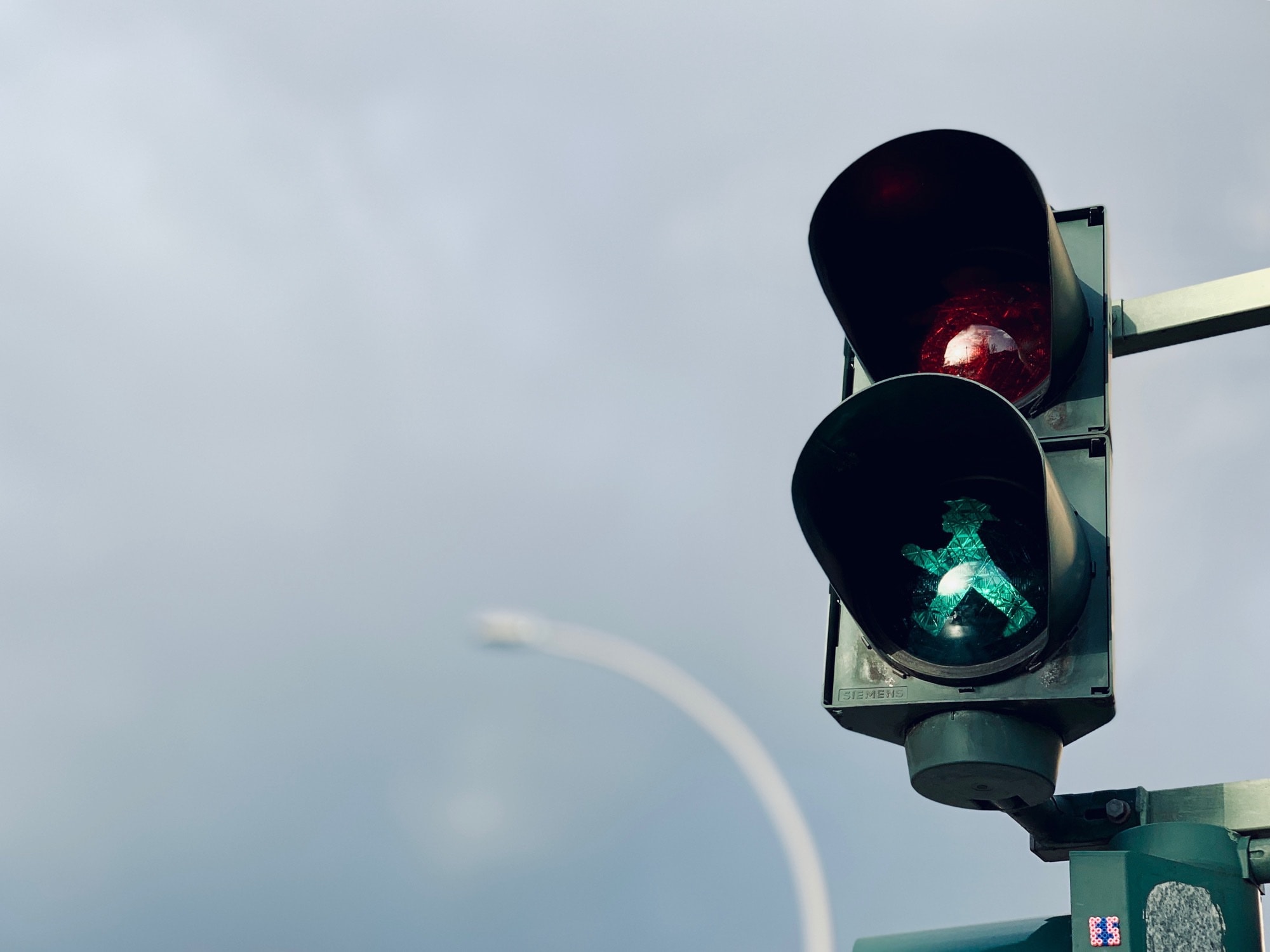
Traffic lights as metaphor for motivation and movement. Photo: Charlie Sorrel/Cult of Mac
During he hangover-fogged morning of January 1st, you scrawled a hasty list of things you thought you should quit or commit to in 2018. More yoga, more walking, less driving, fewer cakes, maybe start meditating. Probably this list is similar to the one you wrote at the beginning of 2018.
How’s it going? Bad, right? You’ve probably spent the last week feeling alternatively guilty, and useless. And that’s not because you can’t pick up a habit — god knows you’ve already got enough bad habits that you’re adept at maintaining. No, you’re just approaching it wrong. And you’re probably a little bit lazy. Let’s fix that, and learn how to create winning streaks
Portrait Mode is great, until it’s not. Photo: Charlie Sorrel/Cult of Mac
The Portrait Mode in the iPhone XR and XS is hands-down amazing. In the time it take to snap a photo, the camera scans the depth of the image in front of it, and uses that data to blur the background, and make the subject pop out, sharp. But it doesn’t always work. The depth detection gets confused by glass, for example, ruining what could have been an amazing image.
Today we’re going to use and app called Focos to fix these depth glitches. Focos is an all-round focusing powerhouse of an app, recently updated to support the iPad, including the new iPads Pro. The area we’ll focus on today (sorry) is the ability to edit the depth map, and paint back in the glass or hair that the iPhone missed.
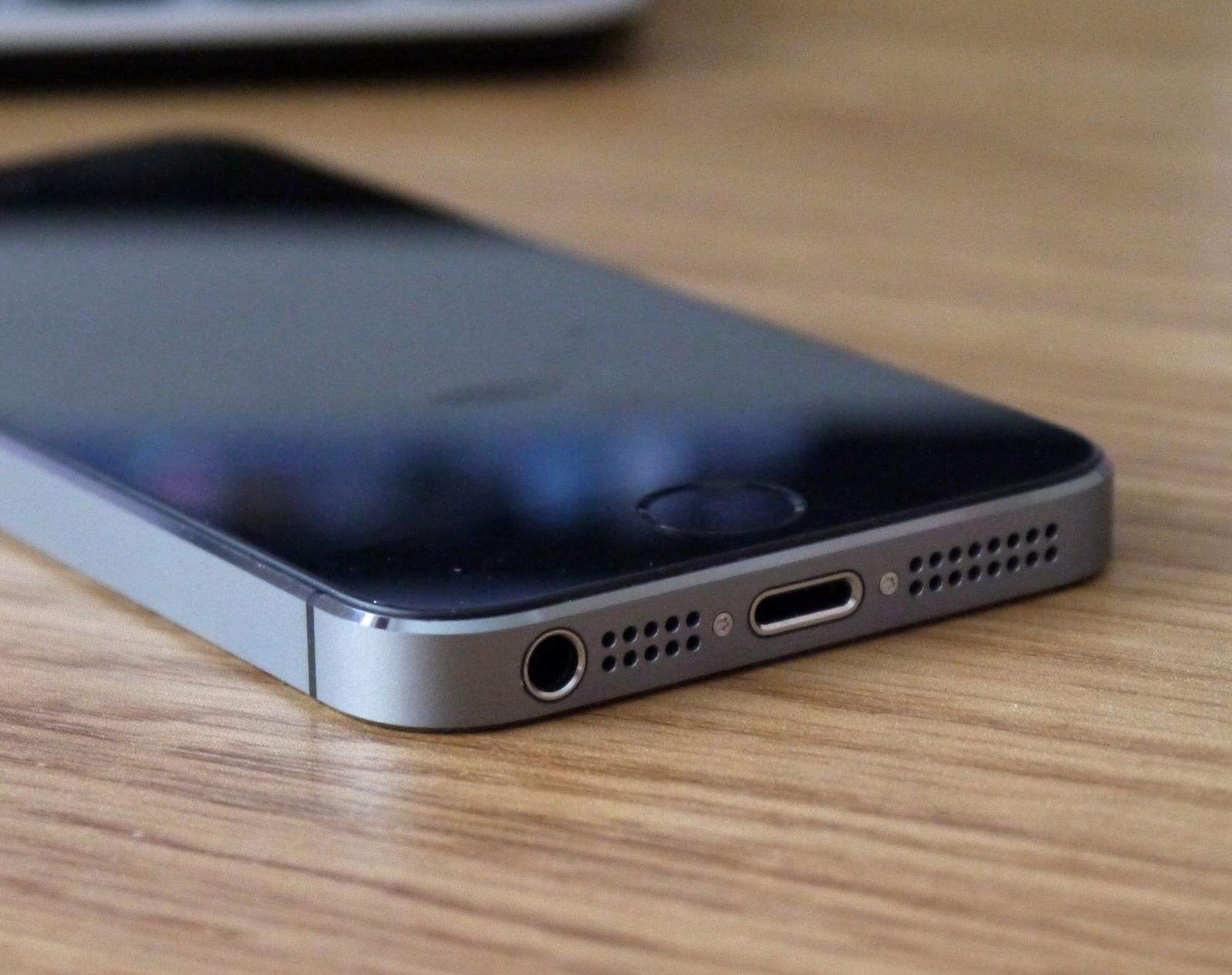
The iPhone 5 might have been Apple’s coolest iPhone design. Photo: Cult of Mac
Apple is set to make 5 billion dollars less this quarter than it previously expected. That’s a pretty big deal, and it’s down to two major things. One was an “economic weakness in some emerging markets.” The other was that Apple said it sold “fewer iPhone upgrades than we had anticipated.”
That second one is very interesting. Why aren’t people upgrading? There are two possibilities. One is that they’re switching to Android. The other is that people are holding onto their old iPhones for much longer. Why’s that?
The Apple Pencil is your secret weapon for podcast editing. Photo: Charlie Sorrel/Cult of Mac
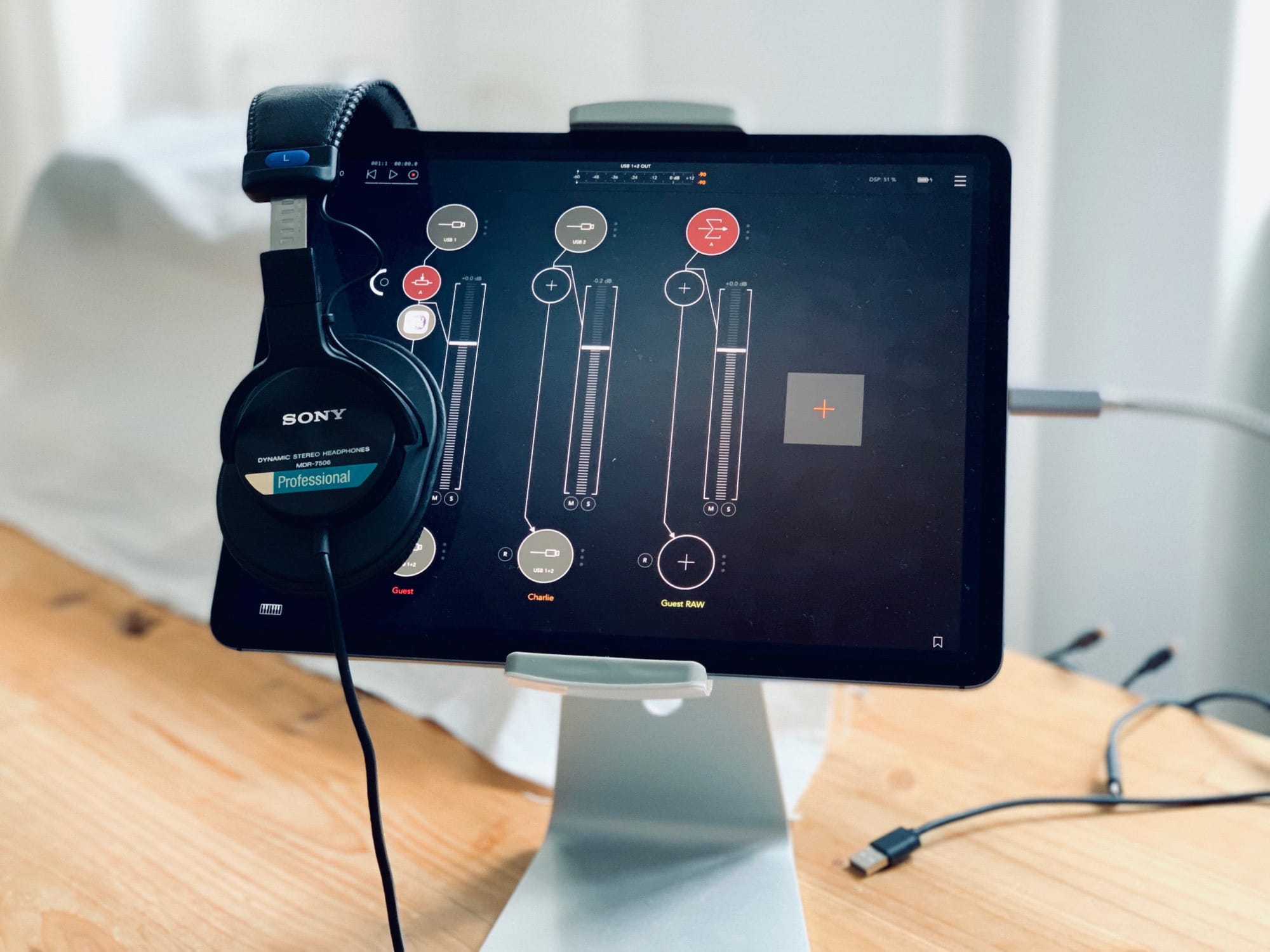
In parts one and two of this series, I talked about how I record podcasts on the iPad. In today’s third and final episode, we’ll learn about editing. For this, I use the awesome Ferrite Recording Studio, and Apple Pencil, and a pair of headphones. Let’s get started.
How to get in shape with Apple Watch in 2019 Photo: Graham Bower/Cult of Mac
If your New Year’s resolution is to get fit with Apple Watch in 2019, maybe I can help. I know from personal experience that it’s never too late to get in shape.
I’m a middle-aged guy, and up until a few years ago, I lived a very unhealthy lifestyle. I never exercised, I only ate junk food, and I was seriously overweight. Today, I have a six-pack, I run seven miles a day, and I even write about fitness for Cult of Mac.
The secret to my transformation is something I call “The Ratchet.” It’s a way of running that makes it so easy to get started that pretty much anyone who can walk can do it. All you need is your Apple Watch and a pair of running shoes.
So if you’re thinking about New Year’s resolutions for 2019, why not give The Ratchet a try? Here’s how.
Don’t keep your App Store wishlist on paper. Photo: Charlie Sorrel/Cult of Mac
You know what the New Year means? New devices, and the need for new apps to fill them. Only you’re all spent out, and instead of buying you an iTunes voucher, Auntie and Uncle got you yet another country-themed doll like you used to collect when you were a kid1.
The answer is an App Store Wish List. And in order to save you money that you don;t have, were going to make our own with the Shortcuts app.
Today we’ll make two shortcuts. One will add any app to a list in Reminders. The second will take that list, and show you a beautiful list of links and prices, right there in the Today view. Just tap on an app to see it in the App Store, and maybe even buy it.
No, not that kind of file. Photo: Charlie Sorrel/Cult of Mac
After trying out the millionth notes/scrapbooking app for the iPad, I realized that I should ditch apps altogether and just use the built-in Files app. It might be severely limited as an actual file browser, but Files has some big advantages over scrapbooking apps. It makes everything available to Spotlight searches, for one, and it doesn’t create duplicates of your files, because you’re always working with the originals.
Another huge advantage is that marking up PDFs with the Apple Pencil is instant. With all other PDF editors I’ve tried, you have to tap to enter a markup mode. In Files, you just start writing on the PDF. And that’s just the beginning.
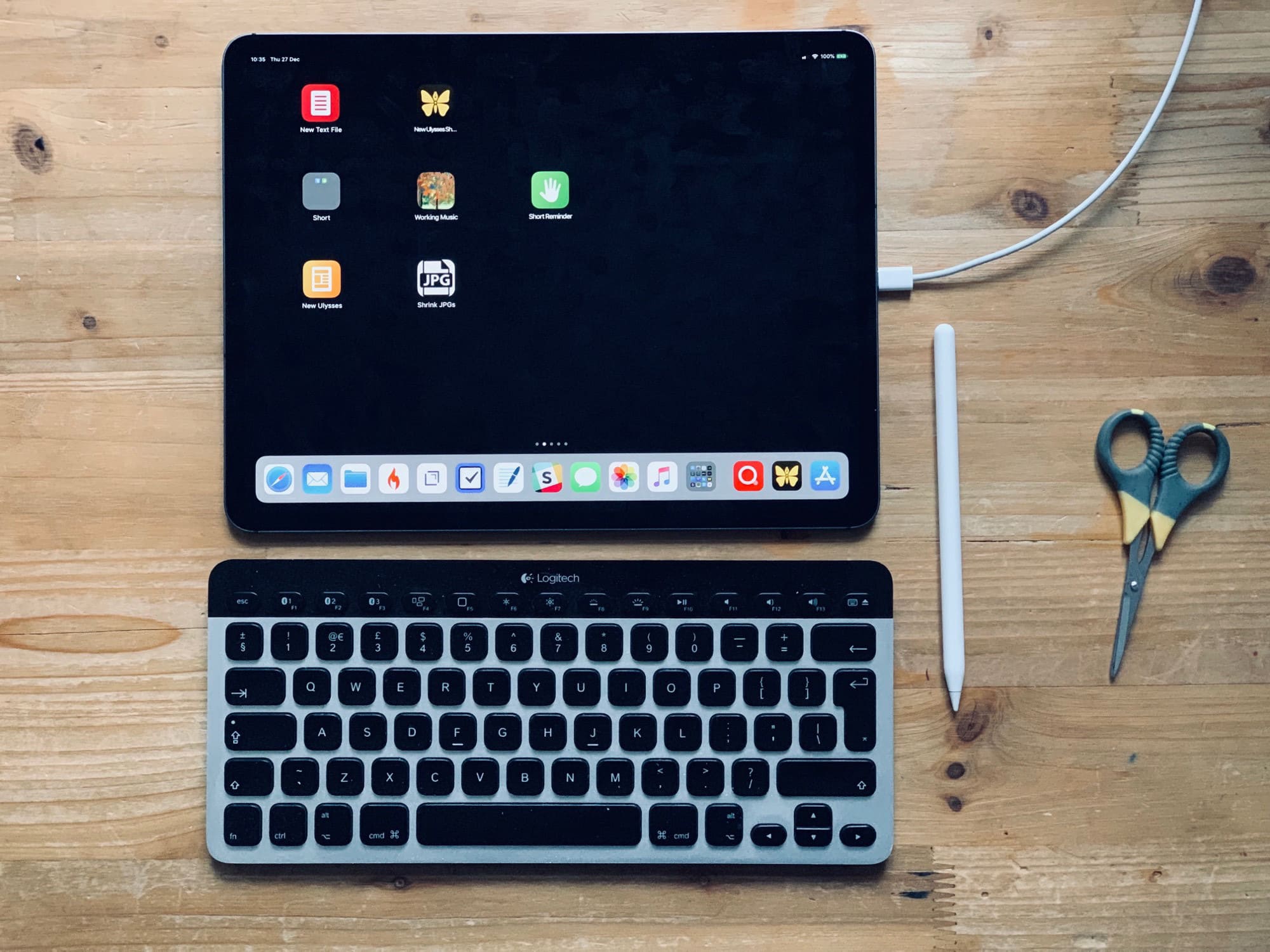
It’s easy to make you home screen more useful. Photo: Charlie Sorrel/Cult of Mac
The iPad’s home screen is a waste of space. The 4X5 grid of icons looks absurd on the 13-inch iPad Pro. In fact, the fact that you’re limited to a grid of app icons is itself absurd. Where are the live readouts from your weather app or stock ticker? Where are the actions to send a message direct to your spouse/boss without opening an app first?
Worse, because the iPad doesn’t have 3D Touch, you can’t do anything useful with those icons other than launch the app1.
Today we’ll fix that. Using a combination of shortcuts, you can add actions to your home screen, instead of apps. For instance, you can create a grid of custom icons which can email a contact, create a new blank file in your text app of choice, create a quick reminder, and so on. Check it out.
It used to be a lot harder to cancel subscriptions. Photo: Charlie Sorrel/Cult of Mac
Did you get a new iPhone or iPad for Christmas? Maybe you got all excited and signed up for a few subscriptions? And now, perhaps, you’re worried that when the free trial periods end, you’ll be stuck paying for them, and that they’ll be as impossible to cancel as an unused gym membership. No problem! Canceling subscriptions on iOS is almost as easy as signing up to them.
The iPhone XR really is a great phone. Photo: Apple
In recent years, the iPhone setup process has changed as dramatically as the iPhones themselves. Apple just keeps making it easier to do. So easy, in fact, that there are just a few things you need to do to move from your old iPhone to a new one. And setting up a new iPhone XR from scratch isn’t much harder — gone are the days of manually copying passwords just to get to the home screen.
There are still a few tricks, though, that will help things run smoothly. Here’s how to set up your new iPhone XR the right way.
Have your iPhone XS up and running ASAP with our setup guide. Photo: FixjeiPhone
In recent years, the iPhone setup process has changed as dramatically as the iPhones themselves. Apple just keeps making it easier to do. So easy, in fact, that there are just a few things you need to do to move from your old iPhone to a new one. And setting up a new iPhone XS from scratch isn’t much harder — gone are the days of manually copying passwords just to get to the home screen.
There are still a few tricks, though, that will help things to run smoothly. Let’s see how to upgrade to the iPhone XS.
“This is going to be the best Christmas video ever!” you tell yourself. You have an iPhone XS, it’s set to 4K at 24 frames per second, and you’re framing your shots like a pro. Smart HDR will illuminate the smiles on the faces of your nieces and nephews, and stabilization will take care of your hangover jitters.
“Oh man, I can’t wait until these morons see this in their iMessages, using iOS 12’s great Share Back feature,” you think somewhat uncharitably, while squeezing a handy link into your thoughts.
Then reality grabs you. That 5-minute 4K clip of the angels ripping their way through a forest’s worth of wrapping paper is over 1.5GB. There’s no way you can share that on your parents’ crappy internet connection. Why oh why didn’t you shoot at 720p? Luckily, Shortcuts is here to save the day. Again.
Christmas time means packing up your daily troubles, forgetting work for a week, and heading home to … troubleshoot your parents’ broken computers and gadgets? Oh man, is it that time of year again already?
That’s the problem with being the family’s only geek — you get handed all the geek jobs. However, you can turn this to your advantage, and make it a lot easier, by going in prepared. Check out our Holiday Troubleshooting Guide right here.
Yum. Perfectly timed. Photo: Charlie Sorrel/Cult of Mac
“Hey Siri, 30-minute timer!” you shout across the kitchen, elbows deep in turkey gizzards. Only Siri isn’t interested. It’s already running that one-hour timer for the roast potatoes. Why would anybody want to run multiple timers at the same time? Silly human.
Thankfully, Shortcuts is here to save your bacon (and your Brussel’s sprouts, sage-and-onion stuffing, and so on). If you’re feeling fancy, you could even set this up to use with Siri, but today we’ll keep it simple. So, no matter how complex your Christmas Day cooking arrangement, Shortcuts will let you know when your goose is cooked.
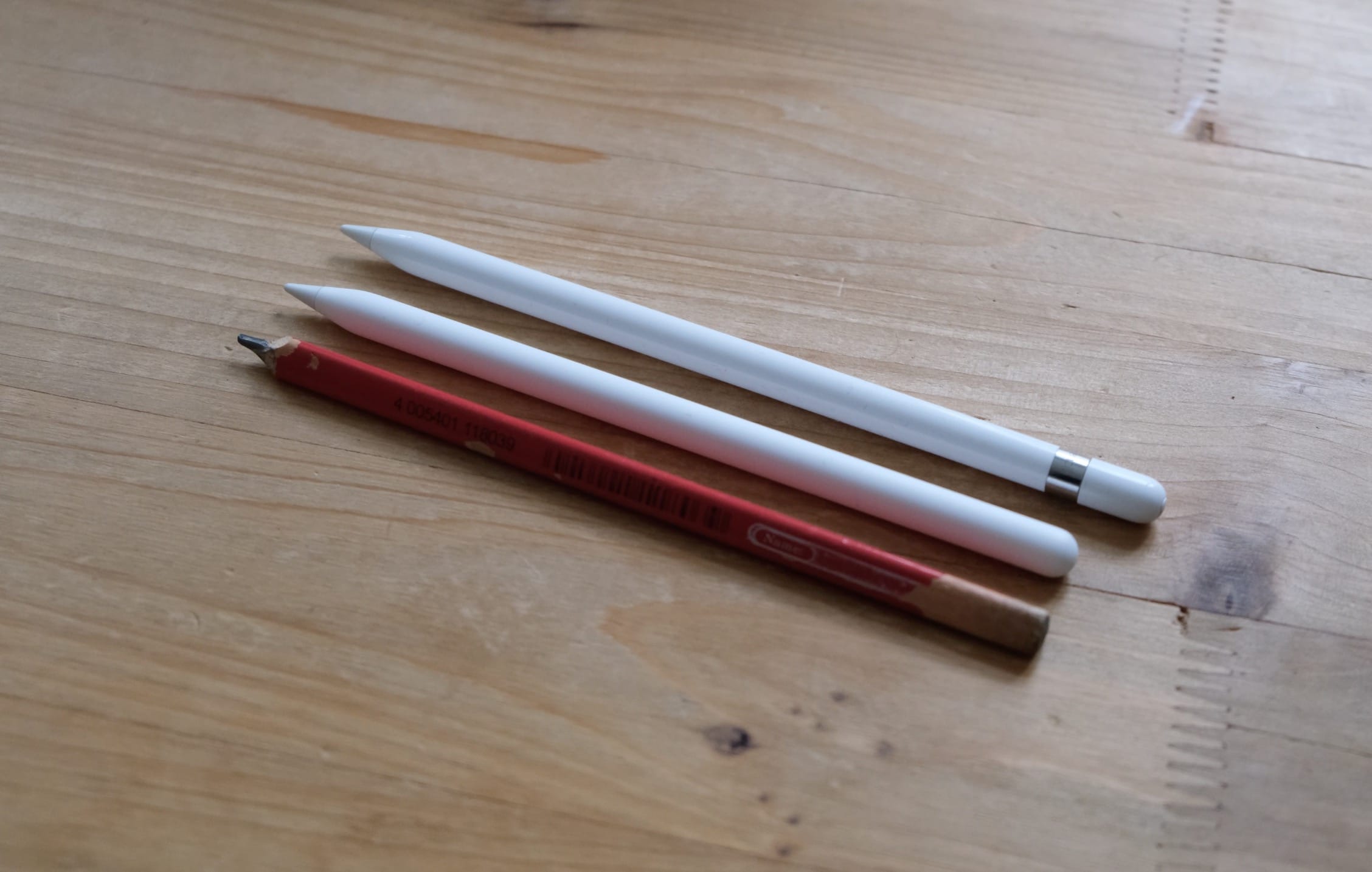
The new Apple Pencil is much nicer than the old one. Photo: Andrea Nepori
Got a new Apple Pencil? Then you should change these two settings as soon as you’ve snapped it onto the side of your iPad Pro and experienced its satisfyingly solid magnetic click.
This flight tracker is built into every iPhone and iPad. Photo: Charlie Sorrel/Cult of Mac
It’s Christmas season, and you know what that means: Extra-long queues at airport check-in and “security;” once-a-year travelers who won’t just get out of the plane’s aisle and just sit the hell down; and of course parents/kids/friends who insist that you never emailed them the details of your flight.
We can’t fix the queues, the morons who mill in the aisles, or your lying friends and family, but I can show you how to quickly track a flight right from the Messages app, or anywhere else you see a flight number written down on your iPhone. Let’s take a look.
The iPad has some amazing tools for recording podcasts. Photo: Charlie Sorrel/Cult of Mac
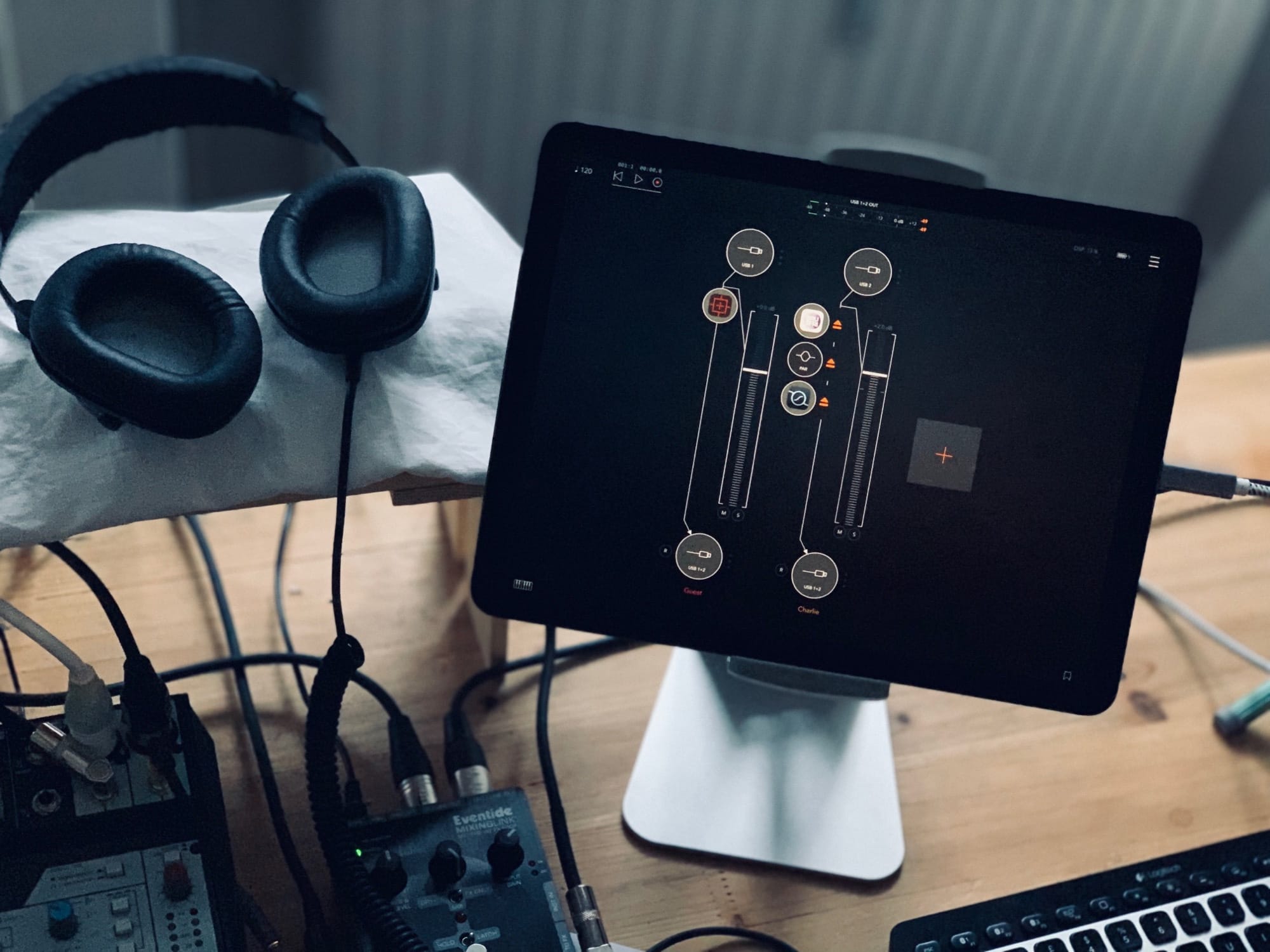
In part one of this series, we saw how to record remote podcasts using only iOS. It requires using your iPhone to place the FaceTime or Skype call, but you end up with a great result. That post covered the setup. Today, we’ll see how the recording and editing parts work, using AUM and Ferrite on the iPad.
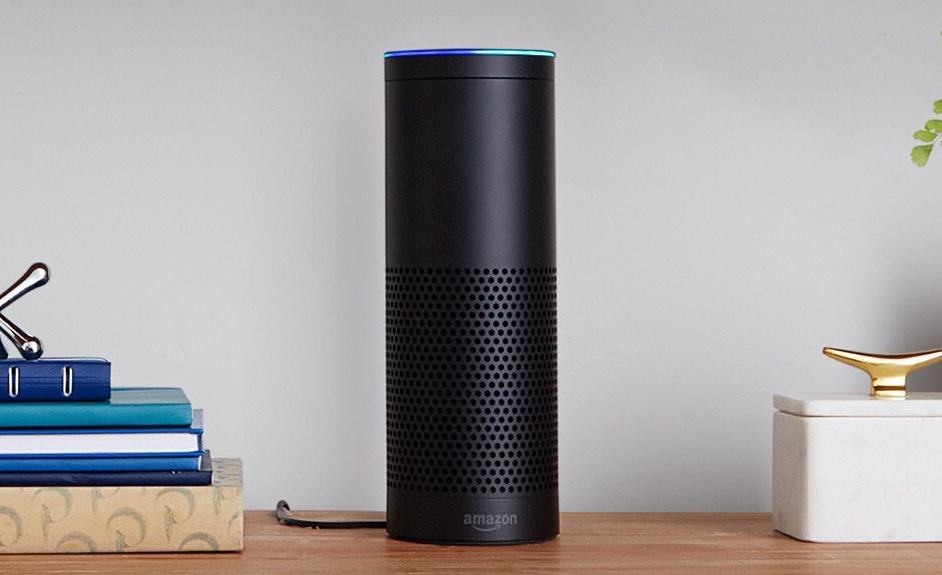
The Echo finally plays nice with Apple Music. Photo: Amazon
Amazon’s Alexa speakers can finally connect to your Apple Music account.
Support for Apple Music on the Amazon Echo was rolled out today, giving iPhone and iPad owners the option to pump out their favorite jams without signing up for an Apple Music competitor like Spotify Premium.
Getting the new Apple Music integration up and running is ridiculously easy, but we’ll walk you through the entire process.
The iPad is more than capable of recording podcasts. Photo: Charlie Sorrel/Cult of Mac
The iPad Pro is pro enough for almost anything, but one thing it still can’t manage is making a Skype (or FaceTime) call and recording it at the same time. This is actually the fault of Skype (and FaceTime), but is nonetheless a pain for anyone who travels and podcasts.
There’s a workaround, however. It requires that you use an iPhone and an iPad together. But seeing as how the alternative is carrying a MacBook, too, it’s a pretty good option. It’s also easy, once you get your head around the setup. And you don’t need to travel to use this setup. After some experimentation, this is now my default podcasting method.