The Apple Watch Control Center has some nifty features you should be aware of. Photo: Cult of Mac
Apple Watch does so much that it’s possible for some of its handy tricks to get lost. You can’t call these three Apple Watch tips marquee features. But they can make life just a bit more convenient.
Here’s how to turn on the flashlight, find your iPhone and silence alarms on your iPhone from an Apple Watch.
Here's why you might be having trouble exchanging images with your friend's iPhone over AirDrop, and how to fix it. Image: Ed Hardy/Cult of Mac
You’re at a party and your friend takes a great picture. You ask them to AirDrop you a copy and the two iPhones won’t connect. So frustrating … what the %^#* is wrong? Why can’t you share iPhone photos the way you used to? You probably just need to tweak a setting to turn on AirDrop’s capability to work with any iPhone.
You see, Apple changed the way AirDrop works in iOS 16. If you haven’t updated your AirDrop settings, it might not work the way you want. Here’s how to set the easy wireless file-transfer system so you can get that picture from your friend.
Make Control Center your own with these new customization options. Image: D. Griffin Jones/Cult of Mac
If you want to make your iPhone easier to use, you can customize its Control Center to gain faster access to the buttons and toggles you rely upon to perform frequent tasks. Plus, you can remove all the junk you never touch from the iPhone Contol Center, putting the vital controls you actually use front and center.
Keep reading to find out how and why you should customize the iPhone Control Center to make the device your own.
There are so many hidden features in iOS 18 to try out! Photo: Rajesh Pandey/Cult of Mac
iOS 18 is packed full of great features Cult of Mac has covered at length — but the upcoming iPhone software update packs many more tiny features and small improvements that Apple did not mention or talk about. If you know to look out for these features, they’ll make the everyday interactions with your phone faster and easier.
Here’s a roundup of 18 little changes and useful features in iOS 18. Keep reading or watch our video.
The control for the iPad Magic Keyboard's backlight isn't where you might think it is. Image: Ed Hardy/Cult of Mac
Some people complain that the Apple Magic Keyboard for iPad lacks a backlight for the keys. Turns out the accessory really has one but the controls aren’t where you might expect.
Here’s how to find the control for the Magic Keyboard in the Control Center. And how to adjust the backlight, too.
It's not easy to find in a pile of miscellaneous clutter. Image: D. Griffin Jones/Cult of Mac
You can ping a lost Apple Watch from your iPhone, thanks to iOS 17 and watchOS 10. The reverse has always been a cool feature of the Apple Watch, helping you find a lost iPhone you left somewhere nearby.
If you take your Apple Watch off at the end of the day, forgetting to throw it on the charger, you might not remember where you left it the following morning. Now, you can find a lost Apple Watch from your iPhone. Here’s how it works.
Hands-on with iOS 18’s top new features. Image: Apple
After spending a few days trying out all the new features in iOS 18, I think it really is one of the biggest updates in a long time. However, hands-on testing shows there’s a lot that needs cleaned up before September, when it’s expected to ship.
The new customizable iPhone Home Screen opens a wide world of possibilities — but you’ll have to wait for third-party apps to update their icons to really make it sing. I’m impressed with the level of customization in Control Center, too, though it’s understandably pretty buggy in this first developer beta. The new Photos app is proving controversial, and I think there are some obvious areas it could be improved, but I like where it’s going overall.
I think there’s a lot to look forward to in iOS 18.
This image shows a beta version of the iOS 18 Settings app and Control Center. Photo: @BetaProfiles, X.com
Apple will overhaul its Settings app across iOS 18, iPadOS 18 and macOS 15 when it unveils the updates at WWDC24, according to a report Friday. In other words, not everything at the big developers conference will be about AI.
Update: Control Center, which provides easy access to frequently used features on iPhones (as well as Macs and iPads), should see changes, too. Apple will upgrade it “with a new music widget and improvements to how it operates smart home appliances,” Bloomberg‘s Mark Gurman wrote over the weekend in his PowerOn newsletter.
Change these settings on your Mac now Photo/Graphics: Apple/Rajesh
Setting up a new Mac is an experience in itself. But once you finish your initial setup, you should change these Mac system settings for a better experience. These five easy tweaks to default Mac system preferences will speed up your workflow and save you time.
Irrespective of whether you are a new or long-time Mac user, below are five settings to change on your Mac. Keep reading or watch our latest video.
Scan QR codes faster with these tips. Image: D. Griffin Jones/Cult of Mac
You can scan and open a QR code directly from your iPhone camera or a picture — you don’t have to download a third-party app. Here are the three ways you can open them: inside the camera, using a shortcut in Control Center and directly from your photo library.
If you’re in a restaurant and you want to open their digital menu, or you’re setting up two-factor authentication using a code, you don’t want to fiddle with installing an app. This functionality is built right into your phone.
Adjust Control Center settings from the comfort of a peaceful forest environment. Photo: D. Griffin Jones/Cult of Mac
Control Center in Vision Pro works very differently than on iPhone, iPad, Apple Watch and Mac. But as with Apple’s other platforms, you can customize the Vision Pro Control Center to make it far more useful.
The first few days after I got my Vision Pro, I found Control Center to be intensely irritating. It constantly appeared in my field of view, bugging me like a hair in my mouth or a piece of popcorn in my teeth.
Luckily, with just a few changes, you can make Control Center way less annoying.
Now Apple's Shazam functionality can identify songs even when you wear headphones. Photo: Apple
Shazam, Apple’s popular app that can name any song in seconds, added a cool new feature Thursday in version 17.3 — it now works even when you wear headphones.
And that’s true for music playing around you or within apps like Instagram, TikTok and YouTube, Apple said.
Its new interface better resembles the new Siri Remote that ships with the latest Apple TV 4K, introduced back in April, and offers greater functionality over the old design.
And to remove tools and shortcuts you never use. Image: Killian Bell/Cult of Mac
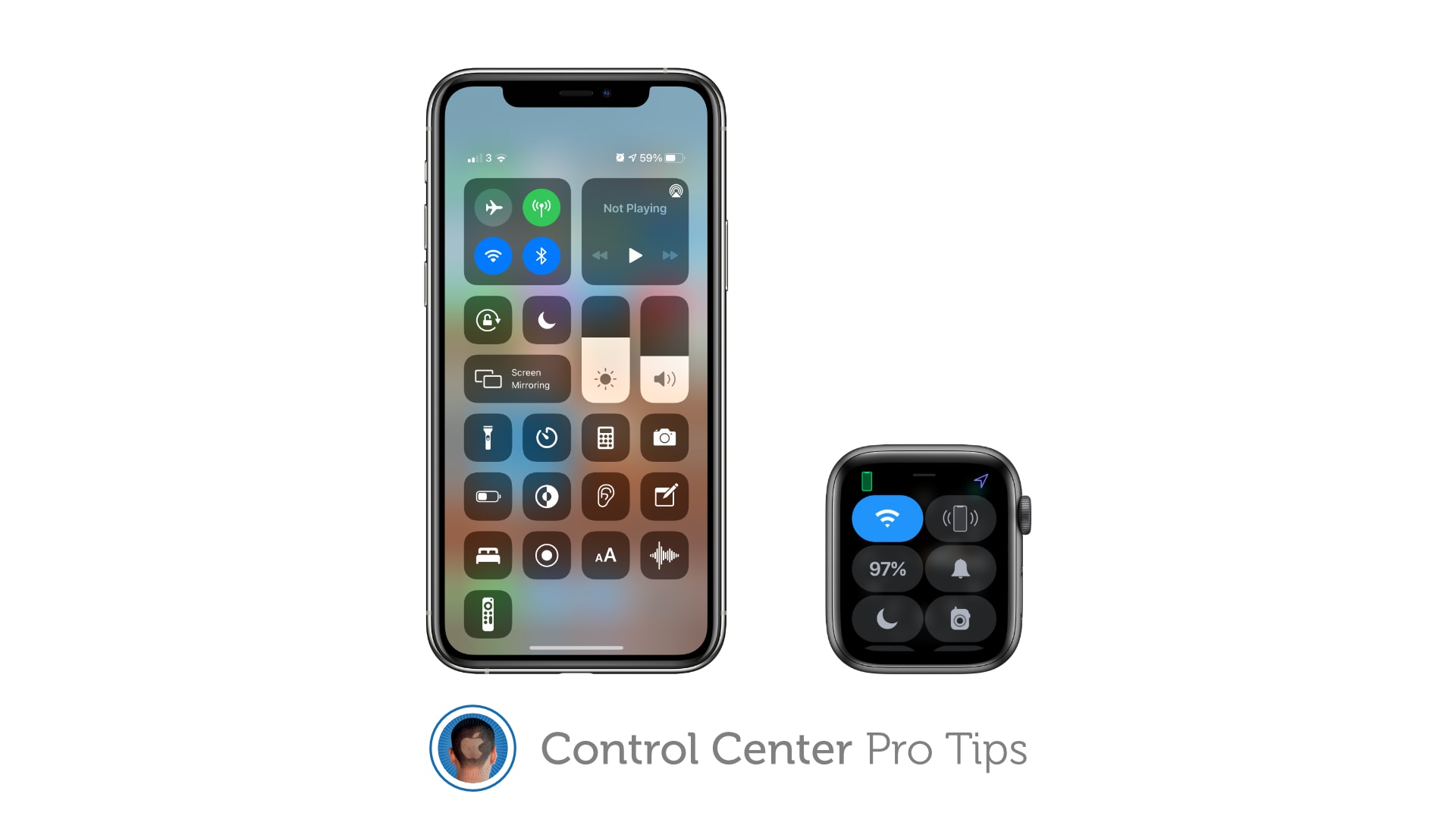
We want to help you master Control Center, one of the most powerful and underutilized features on Apple devices. Cult of Mac’sControl Center Pro Tips series will show you how to make the most of this useful toolbox on iPhone, iPad, Apple Watch and Mac.
Make your favorite Control Center tools and shortcuts easier to find by reorganizing and cleaning up your Control Center window. It’s easy on iPhone, iPad, and Apple Watch — and we’ll show you how.
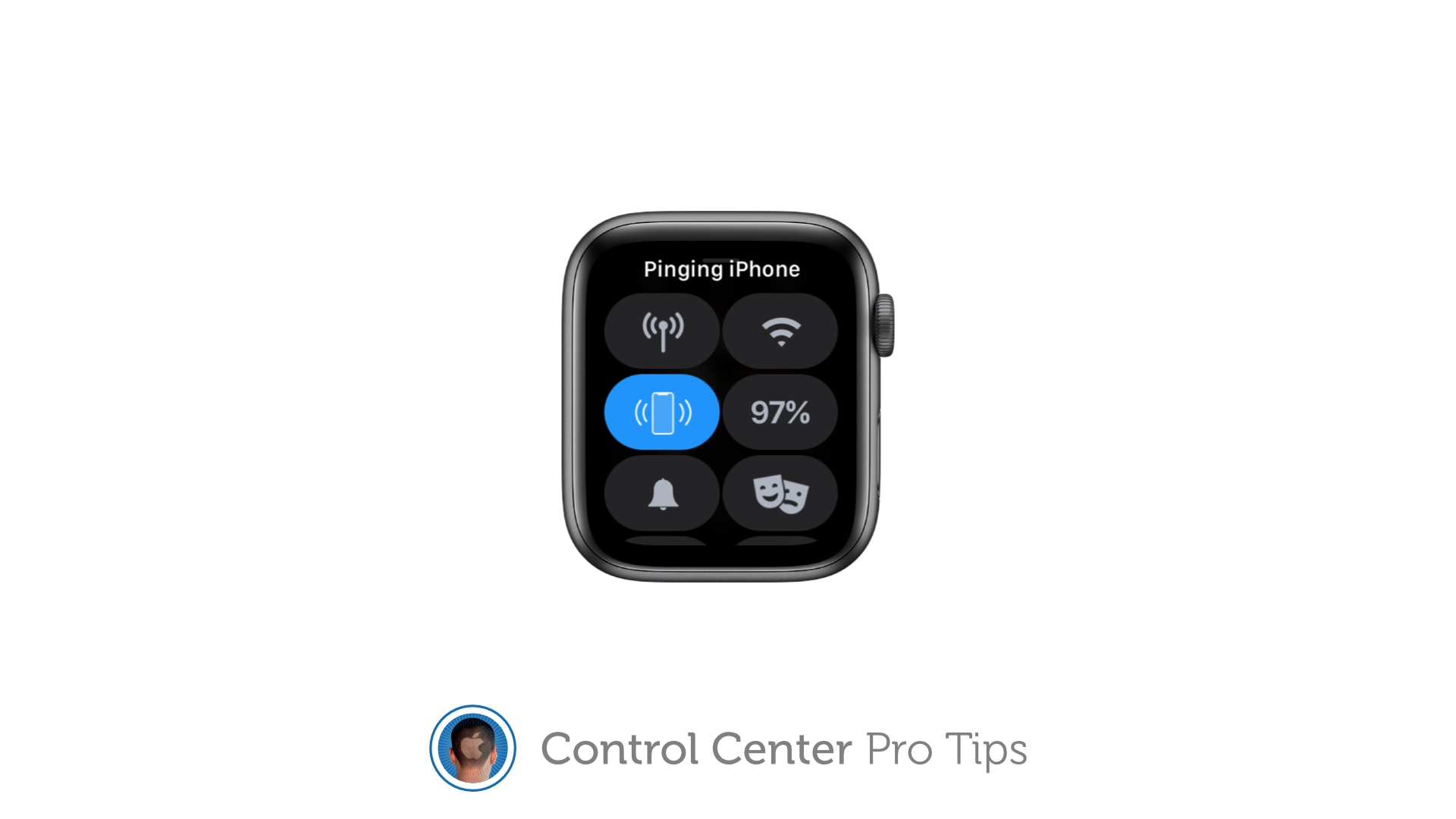
Make your iPhone easier to track down — even in the dark. Image: Killian Bell/Cult of Mac
We want to help you master Control Center, one of the most powerful and underutilized features on Apple devices. Cult of Mac’sControl Center Pro Tips series will show you how to make the most of this useful toolbox on iPhone, iPad, Apple Watch and Mac.
Can’t remember where you left your iPhone? Use Control Center on your Apple Watch to “ping” it so that you can quickly track it down. You can even have your iPhone light up so that it’s easier to find in the dark.
The quick and simply way to toggle noise cancellation and Transparency. Image: Killian Bell/Cult of Mac
We want to help you master Control Center, one of the most powerful and underutilized features on Apple devices. Cult of Mac’sControl Center Pro Tips series will show you how to make the most of this useful toolbox on iPhone, iPad, Apple Watch and Mac.
Switching between different AirPods audio modes is simple with Control Center on iPhone, iPad, and Mac. You can activate or deactivate Transparency and active noise cancellation in just a couple of taps.
Keep Control Center protected by your passcode. Image: Killian Bell/Cult of Mac
We want to help you master Control Center, one of the most powerful and underutilized features on Apple devices. Cult of Mac’sControl Center Pro Tips series will show you how to make the most of this useful toolbox on iPhone, iPad, Apple Watch and Mac.
Control Center puts a ton of useful toggles and shortcuts at your fingertips, and you can access all of them while your iPhone or iPad are locked. If that’s not something you want, you can change it.
Here’s how to block Control Center access from the lock screen on iOS and iPadOS.
Make it easier to hear other people in a crowded room. Image: Killian Bell/Cult of Mac
We want to help you master Control Center, one of the most powerful and underutilized features on Apple devices. Cult of Mac’sControl Center Pro Tips series will show you how to make the most of this useful toolbox on iPhone, iPad, Apple Watch and Mac.
Activate Live Listen for AirPods and Powerbeats headphones inside Control Center to make it easier to hear other people in a noisy environment. The feature is built into iPhone and iPad and easy to use.
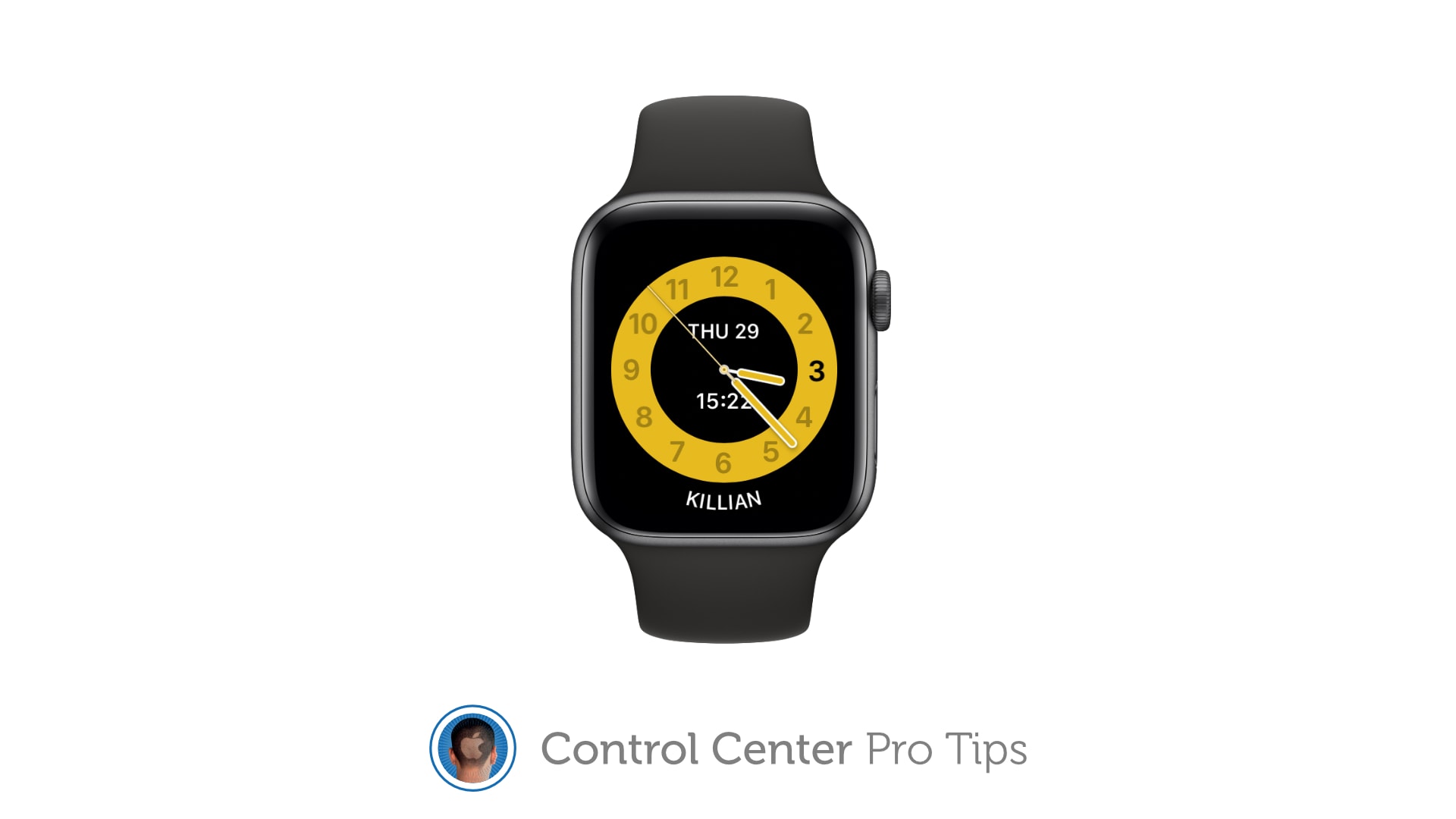
Schooltime prevents Apple Watch from being a distraction in the classroom. Image: Killian Bell/Cult of Mac
We want to help you master Control Center, one of the most powerful and underutilized features on Apple devices. Cult of Mac’sControl Center Pro Tips series will show you how to make the most of this useful toolbox on iPhone, iPad, Apple Watch and Mac.
Schooltime is a handy new feature, introduced in watchOS 7, that keeps Apple Watch quiet and prevents it from being a distraction in the classroom. It can be added to your Control Center options so that enabling Schooltime at any time takes just a swipe and a tap.
Get greater control over keyboard brightness. Image: Killian Bell/Cult of Mac
We want to help you master Control Center, one of the most powerful and underutilized features on Apple devices. Cult of Mac’sControl Center Pro Tips series will show you how to make the most of this useful toolbox on iPhone, iPad, Apple Watch and Mac.
If you use the Touch Bar on your MacBook Pro as it was intended, your keyboard brightness controls aren’t immediately at your fingertips. But you can use Control Center instead to quickly adjust your backlighting.
Stream your screen to Apple TV or a smart TV with AirPlay 2 support. Image: Killian Bell/Cult of Mac
We want to help you master Control Center, one of the most powerful and underutilized features on Apple devices. Cult of Mac’sControl Center Pro Tips series will show you how to make the most of this useful toolbox on iPhone, iPad, Apple Watch and Mac.
The handy screen mirroring feature built into iPhone, iPad, and Mac allows you to stream video or your device’s screen to Apple TV or an external display with AirPlay 2 support. And you can enable it in an instant by using the screen mirroring button in Control Center.
There's no need to fiddle around inside the Settings app. Image: Killian Bell/Cult of Mac
We want to help you master Control Center, one of the most powerful and underutilized features on Apple devices. Cult of Mac’sControl Center Pro Tips series will show you how to make the most of this useful toolbox on iPhone, iPad, Apple Watch and Mac.
Want to quickly activate AirDrop, or deactivate it to avoid unwanted requests? There’s no need to mess around inside the Settings app or System Preferences; the toggle you need is baked into Control Center.
It’s enabled by default on iPhone, iPad, and Mac and can be quickly accessed when you need it. We’ll show you how.
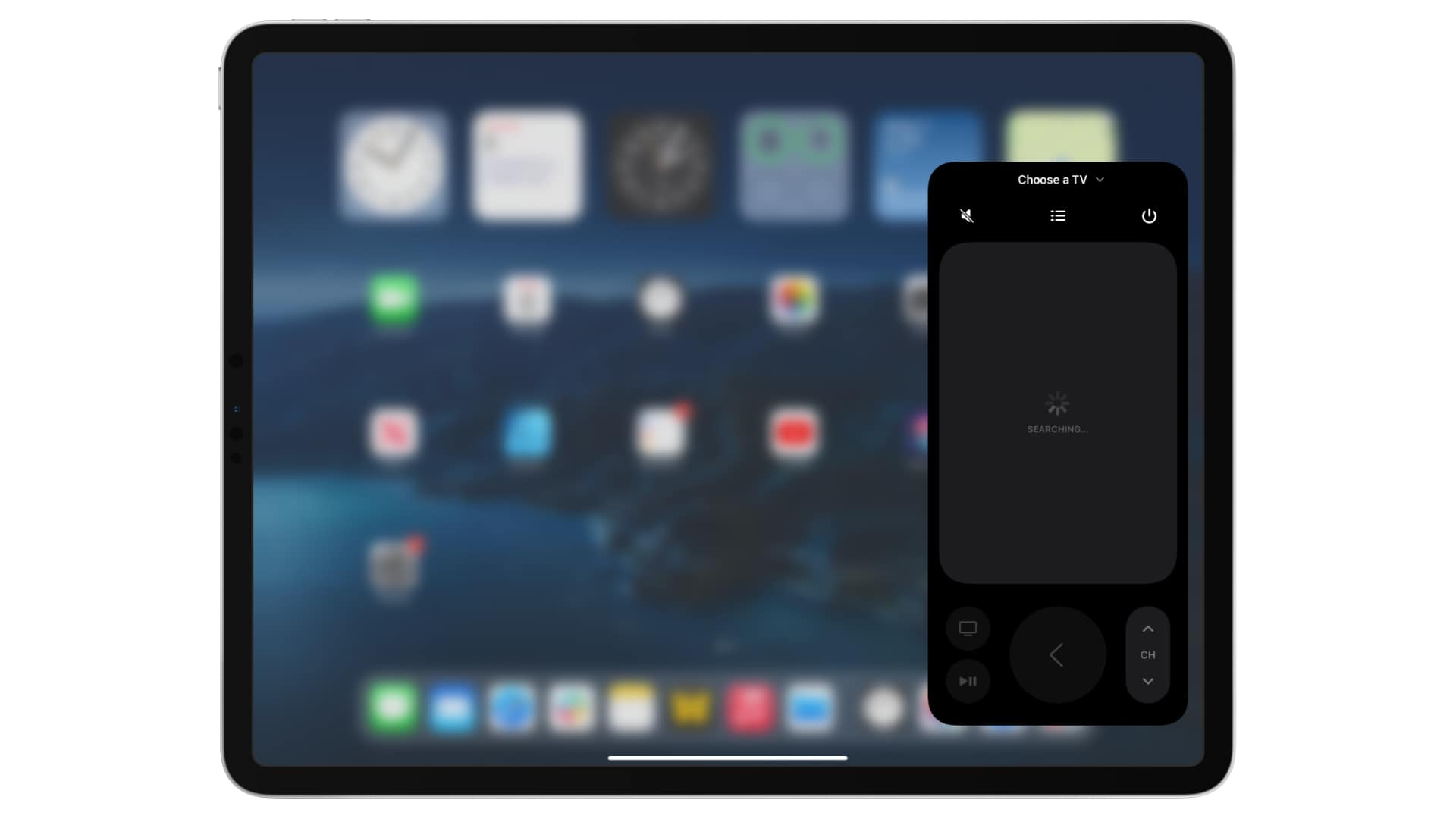
Your iPhone or iPad can replace your Apple TV remote completely. Image: Killian Bell/Cult of Mac
We want to help you master Control Center, one of the most powerful and underutilized features on Apple devices. Cult of Mac’sControl Center Pro Tips series will show you how to make the most of this useful toolbox on iPhone, iPad, Apple Watch and Mac.
Lost your Apple TV’s Siri Remote? Control your set-top box using Control Center on your iPhone or iPad instead. It’s super-simple to set up and you get all the buttons you need for complete control.
Get a better view in the dark. Image: Killian Bell/Cult of Mac
We want to help you master Control Center, one of the most powerful and underutilized features on Apple devices. Cult of Mac’sControl Center Pro Tips series will show you how to make the most of this useful toolbox on iPhone, iPad, Apple Watch and Mac.
Searching for something in a dark room? You can turn your iPhone, iPad and even your Apple Watch into a flashlight with just one tap inside Control Center. We’ll show you how.
Don't miss the chance to save important info. Image: Killian Bell/Cult of Mac
We want to help you master Control Center, one of the most powerful and underutilized features on Apple devices. Cult of Mac’sControl Center Pro Tips series will show you how to make the most of this useful toolbox on iPhone, iPad, Apple Watch and Mac.
Did you know you can quickly capture a voice memo or audio recording with a simple Control Center shortcut? It’ll save you having to hunt down the Voice Memos app, or from having to place another unnecessary icon on your Home screen that you might not need every single day.

![How to set AirDrop to exchange pictures with anyone's iPhone [Pro Tip]](https://cdn.cultofmac.com/wp-content/uploads/2023/12/AirDrop-To-Everyone.jpg "How to set AirDrop to share iPhone photos with anyone [Pro Tip]")